
GTA 6 best settings to change first (motion blur, movement, alerts and more)
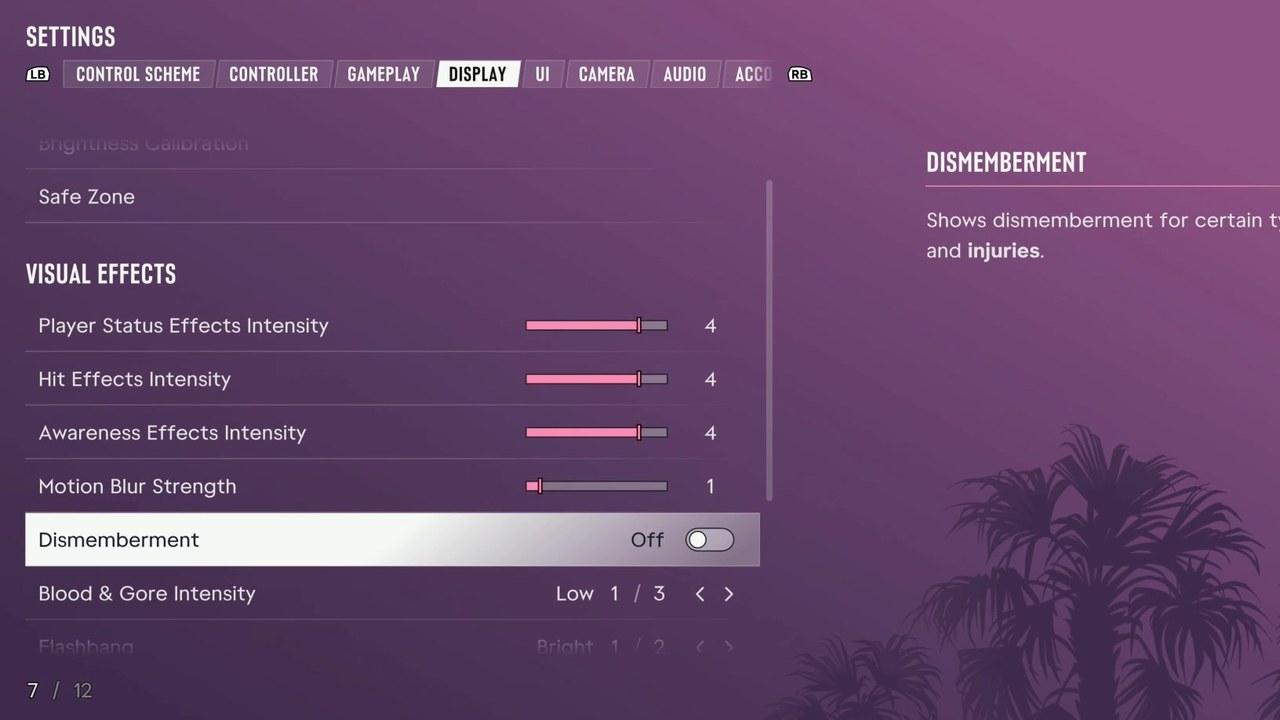
Menu locations for Motion Blur Strength (Display) and Movement Speed (Gameplay) are visible in CC BY settings footage from DPJ (the header image). Recommendations come from BennyCentral and Boomstick Gaming, checked November 21, 2026. Creators disagree on Jog vs Run for movement speed; both are shown. Speaker Names and the control scheme are from our own earlier guides. These are preferences, not fixes, so try them and keep what feels right.
Quick answer
Turn Motion Blur Strength down in Settings > Display, set Movement Speed in Settings > Gameplay (BennyCentral likes Jog, Boomstick Gaming likes Run), turn off weapon sway under Camera Comfort, turn on notifications and discovery alerts in UI, switch on Speaker Names in UI, consider the Classic control scheme if sprint feels wrong, and raise Brightness Calibration if nights are too dark.
On this page 8
Screenshots from our own playthrough get added here as we play.
GTA 6 runs at 30 FPS on consoles, so a few settings matter more than usual. These are the ones big tips channels like BennyCentral and Boomstick Gaming change first. None of them are required. Try them and keep what feels right.
Display: turn motion blur down
Settings > Display > Visual Effects > Motion Blur Strength. BennyCentral turns it off on day one because it smears everything when you're moving fast, and at 30 FPS that's worse.
While you're in Display: if nights look pitch black, raise Brightness Calibration. The game is very dark at night on purpose.
Gameplay: pick a movement speed
Settings > Gameplay > Movement > Movement Speed sets how fast you go when the stick is pushed all the way.
- Jog: BennyCentral's pick. Small stick movements walk, the edge of the stick jogs, so you get finer control.
- Run: Boomstick Gaming's pick. You go straight to the faster pace, and a slight tilt still walks.
Either way, clicking the left stick sprints. There's a separate Combat Movement Speed right below it.
Camera: turn off weapon sway
Boomstick Gaming turns off weapon sway under Camera Comfort. With it on, the crosshair drifts even when you stand still. With it off, it stays put. It's basically a free aim upgrade.
UI: turn on alerts and names
- Notifications and discovery alerts: BennyCentral says to turn these on so you see new collectible finds and how your actions affect your criminal profile. There's a lot to miss in Leonida.
- Speaker Names: off by default. Turn it on so you know who's talking. Our Do This First in GTA 6 article and its Short show where it is.
Controls: Classic if sprint feels wrong
If you keep jumping when you mean to run, the default scheme is the problem. Switch to Classic for a GTA 5-style layout. Full walkthrough: GTA 6 changed sprint, fix your controls.
Bonus: auto-drive
Not a menu setting, but it feels like one. BennyCentral shows that with a waypoint set, you can hold Down on the D-pad while driving and press Circle / B to let the car drive itself there, at a speed you can adjust.
More strategy tips at gta6cheatshq.com. Join our Discord for early access to the roleplay server.
Image and settings footage: DPJ (CC BY). Recommendations from BennyCentral and Boomstick Gaming.
Unofficial fan site, not affiliated with Rockstar Games or Take-Two Interactive.
FAQ
- Should you turn off motion blur in GTA 6?
- BennyCentral says yes. He turns it off from the start because it makes things hard to see at speed, especially at 30 FPS. It's Motion Blur Strength under Settings > Display, in the Visual Effects list.
- What movement speed setting is best in GTA 6?
- It's personal. BennyCentral sets Movement Speed to Jog for finer control with small stick movements; Boomstick Gaming sets it to Run so your character goes straight to the faster pace. Clicking the left stick still sprints either way.
- How do you turn off weapon sway in GTA 6?
- Boomstick Gaming shows it under Camera Comfort in Settings. With sway off, the crosshair stays still when you're standing still.
- Why is GTA 6 so dark at night?
- Nights are very dark by design. Raise Brightness Calibration under Settings > Display, or sleep until morning.
Related guides
Sources
- BennyCentral: GTA 6 - 23 HUGE Tips You NEED to Know on Day 1
- Boomstick Gaming: Tips That'll Make Your Life Easier In Grand Theft Auto 6
- DPJ: GTA 6 - 10 Tips & Tricks I Wish I Knew SOONER! (settings footage and header image, CC BY)
- DPJ: GTA 6 - 10 HIDDEN FEATURES The Game DOESN'T Tell You About! (settings footage, CC BY)
GTA 6 Cheats HQ Discord
Join the Crew
Day-one help, cheat codes, mission questions, and spoiler-tagged channels so nobody ruins the story for you. Find something in-game? Post it there and we will test it before it goes on the site.